Introduction
Most people never touch the settings on their phone camera. They point, they tap, and they trust the software to do the rest. The Expert RAW camera app exists for the opposite kind of user, someone who wants to grab the controls and shape the image before it is even saved. Samsung built this app for Galaxy owners who want the kind of manual control found on a mirrorless camera, packed into the phone already in their pocket. This article walks through what the app does, which devices can run it, and how to start using it without feeling lost.
1. What Is the Expert RAW Camera App
Expert RAW is a separate download from Samsung, not part of the standard camera app. It is aimed at hobbyists and advanced shooters who want to pull more detail out of every shot. Instead of a single compressed image, the app hands you a file built for editing.
The app saves a JPEG and a 16-bit Linear DNG RAW file at the same time, so you get a quick preview and a full-detail file in one shutter press. That RAW file holds far more image data than a standard photo, which means shadows, highlights, and color can all be adjusted later without the image falling apart.
2. Which Galaxy Phones Support It
Not every Galaxy phone can run Expert RAW. Samsung states that the feature works on Galaxy S20 or later models, and it can be downloaded directly from the Galaxy Store.
A closer look at supported hardware shows some nuance:
- All Samsung flagship phones from 2022 onward, including the Galaxy S25 series and Galaxy Z Fold 7, work with the app.
- Older models such as the Galaxy S21 Ultra, Z Fold 3, Galaxy S20 Ultra, Note 20 Ultra, and Z Fold 2 are also supported, though processing may run slower on that aging hardware.
- The base Galaxy S21, S21 Plus, S20, S20 Plus, and Note 20 are left out, since their telephoto lenses do not offer the required 2x optical zoom.
New Galaxy releases keep receiving fresh Expert RAW builds. Galaxy S26 owners running the One UI 9 Beta, for example, picked up an updated version of the app with improved image processing and a feature called Virtual Reflector. Always check that your software is current, since a version built for newer One UI releases may not install on an older build.
3. RAW Files Versus JPEG Files
Understanding the difference between these two file types is the whole reason this app exists. A JPEG compresses the image to save space, throwing away information the camera captured but decided you probably would not miss.
A RAW file skips that step entirely. It stores the raw, unprocessed data straight from the sensor. Nothing is thrown out, so a photographer can recover a blown-out sky or bring detail back into a dark corner during editing, tasks that are far harder or impossible with a compressed JPEG.
That extra data comes at a cost in file size. A RAW image from Expert RAW can run between 10MB and 30MB, noticeably larger than a standard JPEG from the regular camera app. Anyone who plans to shoot RAW regularly should keep an eye on their storage and be ready to move files off the phone often.
4. Manual Controls Inside the App
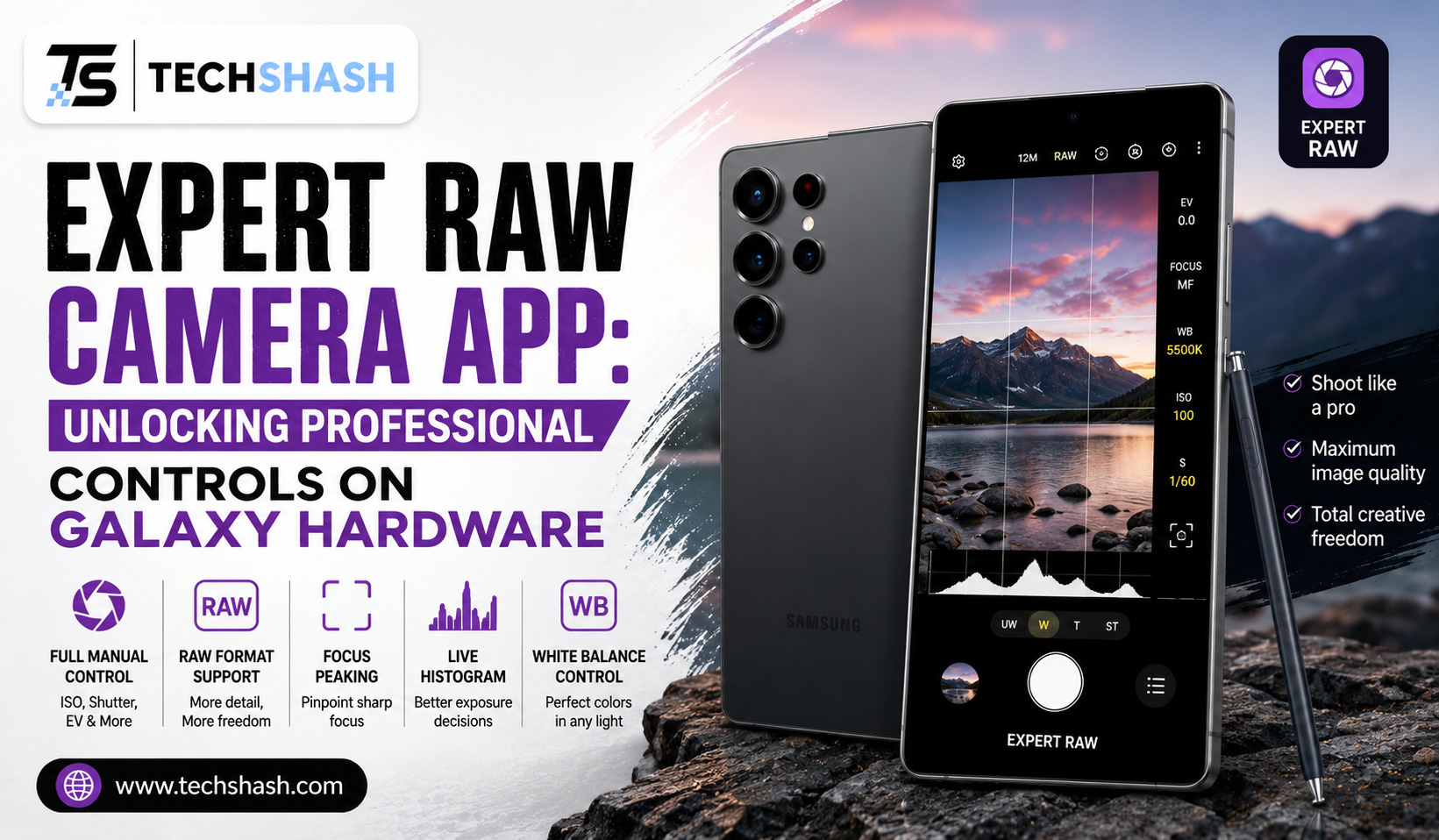
Expert RAW hands you the same dials a professional camera offers. You can adjust:
- Shutter speed
- ISO
- Exposure value (EV)
- White balance
- Focus, including manual focus peaking
There is also a Custom Preset feature, which saves your favorite combination of settings so you do not have to rebuild them every time you shoot in similar lighting. A dedicated histogram sits on screen too, something the standard camera app leaves out even in its own Pro mode. Watching that histogram while you shoot is one of the fastest ways to catch a poorly exposed shot before it is too late to fix.
5. Special Shooting Modes
Beyond manual dials, Expert RAW includes a few modes built for specific situations.
Astrophotography
Certain models, including the S23 series and the S22 series on newer software, get an astrophotography mode with a Sky Guide to help frame the night sky. Long exposures pull out stars and, under the right conditions, the Milky Way. This mode only activates when the camera is set to 12MP resolution.
Multiple Exposure
The same devices that support astrophotography also support a multiple exposure mode, letting several frames blend into a single image for creative effects that a single shot cannot achieve.
Ocean Mode
A more recent addition, Ocean mode, was built for shooting underwater or near water, giving the app an unusual edge compared to most phone camera software on the market.
6. Multi-Lens RAW Capture
Many third-party camera apps only pull RAW data from the main sensor, which limits creative options. Expert RAW does not have that restriction. It supports RAW capture from the ultrawide, main, and telephoto lenses, so a photographer can pick whichever lens fits the scene and still walk away with a full DNG file.
This flexibility matters most for anyone shooting a variety of subjects in one session, since switching from a wide landscape shot to a tighter telephoto portrait no longer means giving up the RAW workflow.
7. Editing Your RAW Photos
A RAW file is only half finished straight out of the camera. It needs editing to reach its full potential, and Samsung built Expert RAW to work closely with Adobe Lightroom. From the Gallery app, a photographer can select a RAW image, swipe up, and tap the Lightroom icon to launch the app directly, or install it if it is missing.
From there, standard RAW editing tools apply: pulling back highlights, lifting shadows, adjusting white balance, and fine-tuning color, all without the harsh quality loss that comes from editing a compressed JPEG.
8. Getting Started the Right Way
Jumping straight into full manual mode can feel overwhelming. A calmer approach works better for most beginners:
- Download Expert RAW from the Galaxy Store and confirm your phone appears on the supported list.
- Shoot a few photos in good daylight first, adjusting one setting at a time so you can see its effect.
- Turn on the histogram and get comfortable reading it before switching to trickier lighting.
- Save a Custom Preset once you find settings you like for a particular type of shot.
- Install Lightroom and practice basic edits on a handful of RAW files before shooting anything important.
Key Takeaways
- File format: Expert RAW saves both a JPEG and a 16-bit Linear DNG RAW file with every shot.
- Device support: Galaxy S20 or later models are supported, with some exceptions among base-tier 2020 phones.
- Manual controls: Shutter speed, ISO, EV, white balance, and focus are all adjustable, along with a histogram and Custom Presets.
- Special modes: Astrophotography, multiple exposure, and Ocean mode extend what the app can shoot.
- Multi-lens support: RAW capture works across the ultrawide, main, and telephoto lenses.
- Editing: Lightroom integration through the Gallery app makes post-processing straightforward.
FAQs
Is Expert RAW free to download?
Yes, it is available as a free download through the Galaxy Store on supported devices.
Do I need Adobe Lightroom to use Expert RAW?
No, but Lightroom makes editing the RAW files much easier since Samsung built the app to work directly with it.
Can I still get a normal JPEG if I shoot with Expert RAW?
Yes, the app saves a JPEG alongside every RAW file automatically.
Does Expert RAW work with the ultrawide and telephoto cameras?
Yes, RAW capture is available across the ultrawide, main, and telephoto lenses on supported phones.
Why are my Expert RAW photos taking up so much storage?
RAW files are much larger than JPEGs, typically between 10MB and 30MB each, since they store far more image data.
Conclusion
The Expert RAW camera app turns a Galaxy phone into a genuinely capable tool for serious photography, giving hobbyists and enthusiasts the same kind of manual control and file flexibility found on dedicated cameras. Between the multi-lens RAW support, the specialized shooting modes, and the tight Lightroom integration, it closes much of the gap between phone photography and professional gear. Anyone with a supported Galaxy device who wants more say over how their photos turn out has good reason to give it a try.